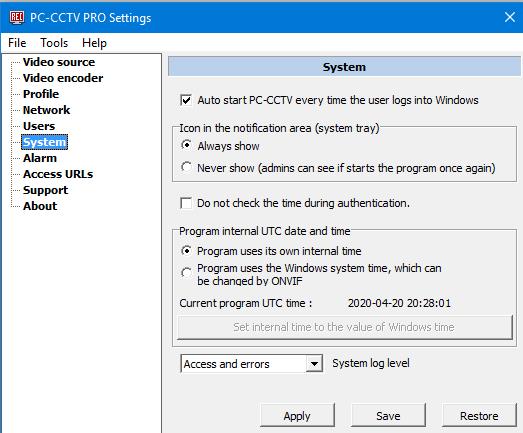
Auto start PC-CCTV every time the user logs into Window: If checked, PC-CCTV program will start and run every time user logs in Windows. The user may not be aware (for example forget) that program runs.
Icon in the notification area (system tray): If checked "Never show" then icon will not be seen in the windows notification area. If you want the icon to be seen, you need to start the program again with windows "administrator rights". Only a user having windows administrator rights can change the setting.
Do not check the time during authentication: This simplify the authentication of ONVIF, the time check doesn't occur. In theory hackers can hack the authentication. Don't turn on the option unless it's needed.
Program internal UTC date and time: If checked, then time of the program can be different from Windows system time and can be set or changed by a DVR using ONVIF protocol. This is recommended setting.
If checked "Program uses the Windows system time, which can be changed by ONVIF", then the time of the program will always be the same as is Windows system time. However, be aware that DVR still can change PC-CCTV time but in that case it will also change Windows system time! Such situation may cause problem/malfunction of other programs which use windows system time!
Set internal time to the value of Windows time - If you press the button - internal time of the PC-CCTV program will be set equal to the Windows system time.
System log level: